
Recurring content elements: Rich Text Editor (RTE)
RTE element that is used in multiple components to add textual content

Recurring content elements are elements that occur in multiple components with more or less similar functions and display. The elements are: Link, Image, RTE (rich text editor), Theme and Spacing.
Introduction
The RTE (rich text editor) is used in multiple components that allow stylable text. Its main purpose is to enter textual content with freely definable style information.
The element is available in the following components:
CMS settings
The RTE element does not have its own tab but is usually just a sub-part of another element.
 |
Cut | Cuts a marked piece of text |
 |
Copy | Copies a marked piece of text |
   |
Paste as text
Paste from word |
Pastes cached text
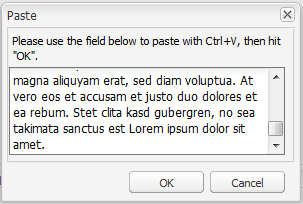
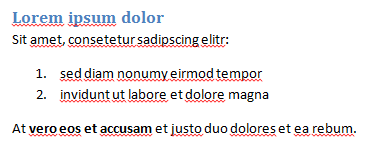
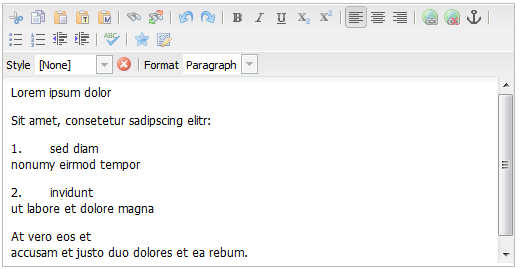
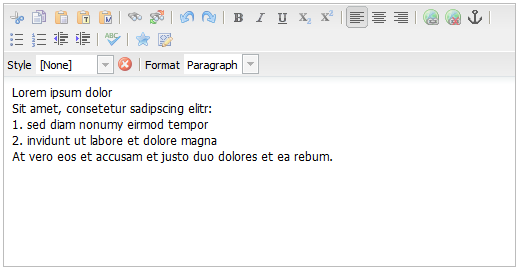
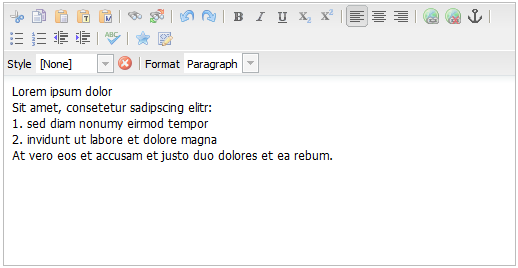
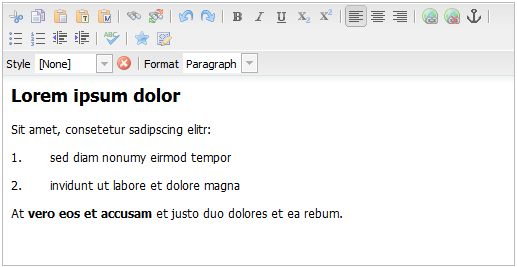
There are several possibilites to paste the text. Besides the key combination CTRL+V, there are 3 paste options reflected in the toolbar. It is recommended to only use these options! The following example text
is copyied from a Word file and pasted in all possible ways. Based on this example, the various options are best explained: CTRL+V Pastes the cached text. It is not recommended to use this function because there is the possiblity to also paste unwanted style information.
Paste Pastes the cached text and removes some style information.
Paste as text Pastes the cached text and removes all style information.
Paste from word Pastes the cached text and removes only the unsupported style information.
As a result, supported styles like Heading or Numbered lists are preserved. |
 |
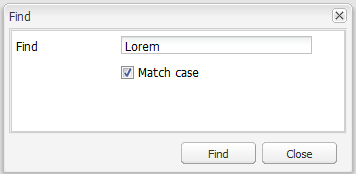
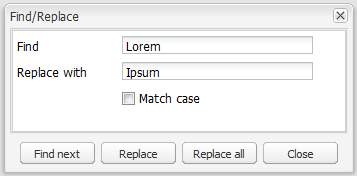
Find |
Finds a text fragment
|
 |
Replace | Finds and replaces a text fragment
|
 |
Undo |
Undo last action |
 |
Redo | Redo previously undone changes |
 |
Bold | Makes the selected text bold. Example: bold text |
 |
Italic | Makes the selected text italic. Example: italic text |
 |
Underline | Underlines the selected text. Example: underlined text |
 |
Subscript | Formats the selected text as subscript. Example: subscripted text |
 |
Superscript | Formats the selected text as superscript. Example: superscripted text |
 |
Align text left | Aligns the selected text left. Example: left aligned text |
 |
Align text center | Aligns the selected text center. Example: center aligned text |
 |
Align text right | Aligns the selected text right Example: right aligned text |
 |
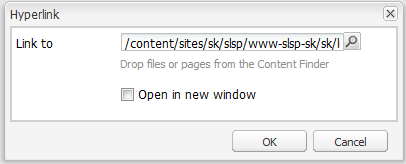
Hyperlink | Adds a link to the selected text
Example: hyperlinked text With the checkbox Open in new window, it is possible to set the link target = _blank. Special use case: In order to create a telephone link (that lets the portal user tab it to call a number), add tel:unformatted-number, e.g. tel:+435010015001 Example: call us |
 |
Unlink | Removes a previously created link |
 |
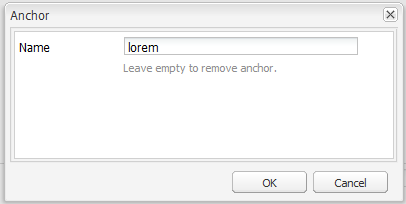
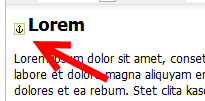
Anchor | Adds an anchor to the selected text
A set anchor can be linked to by adding a # in front of it. So if an anchor on the same page is linked to, it is sufficient to create a Link component or a hyperlink in the RTE and add #example-anchor as link target. If an anchor on another page is linked to, enter the full URL like: http://www.sparkasse.at/horn/privatkunden#example-anchor Example: link to a set anchor (which is this table list item) |
 |
Bullet list | Adds a bullet list. Example:
|
 |
Numbered list | Adds a numbered list. Example:
|
 |
Outdent | Outdents the selected paragraph or list item. Example: outdented text |
 |
Indent | Indents the selected paragraph or list item. |
 |
Check spelling | Performs a spell check and highlights the findings |
 |
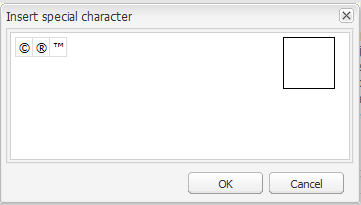
Special characters | Adds a special character
Example: © ® ™ |
 |
Source edit | Allows to edit the text in HTML
Only common HTML attributes are valid, all <script> information will be discarded.
|
 |
Style | Adds a style to the selected text. Example: SEO Text Blue Legal copy Red Semibold Please note that before selecting a Style, a text part needs to be marked. To remove the Style of a text part, mark it and press the remove button (red x). |
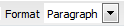 |
Format | Formats the selected text hierarchically. Example: paragraph (<p>) Heading1 (h1)Heading2 (h2)Heading3 (h3)Heading 4 (h4) |
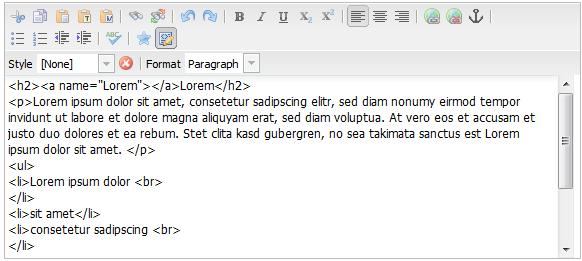
 Please note that only HTML experienced editors should use this feature. Bugs or defects that result from invalid HTML can not be supported by the Helpdesk.
 Related topics
Help Center
Important links:

Topics:
- , Opens in a modal
- , Opens in a modal
- , Opens in a modal